During the application tracking system (ATS) user research, there was a need for a built-in communications system within an ATS but also the need to be able to send bulk communications for bulk actions such as declining applications, shortlisting and invitations to interview. For those bulk actions, the ability to save a message template within the service would also be useful so this can be utilised across messages for different applications and job roles.
# What we have done
Following the release of the built-in messages feature on Teaching Vacancies, we have introduced a templating and bulk message functionality within the service to enable hiring staff to send the same message, to numerous applicants, more easily.
This change has provided:
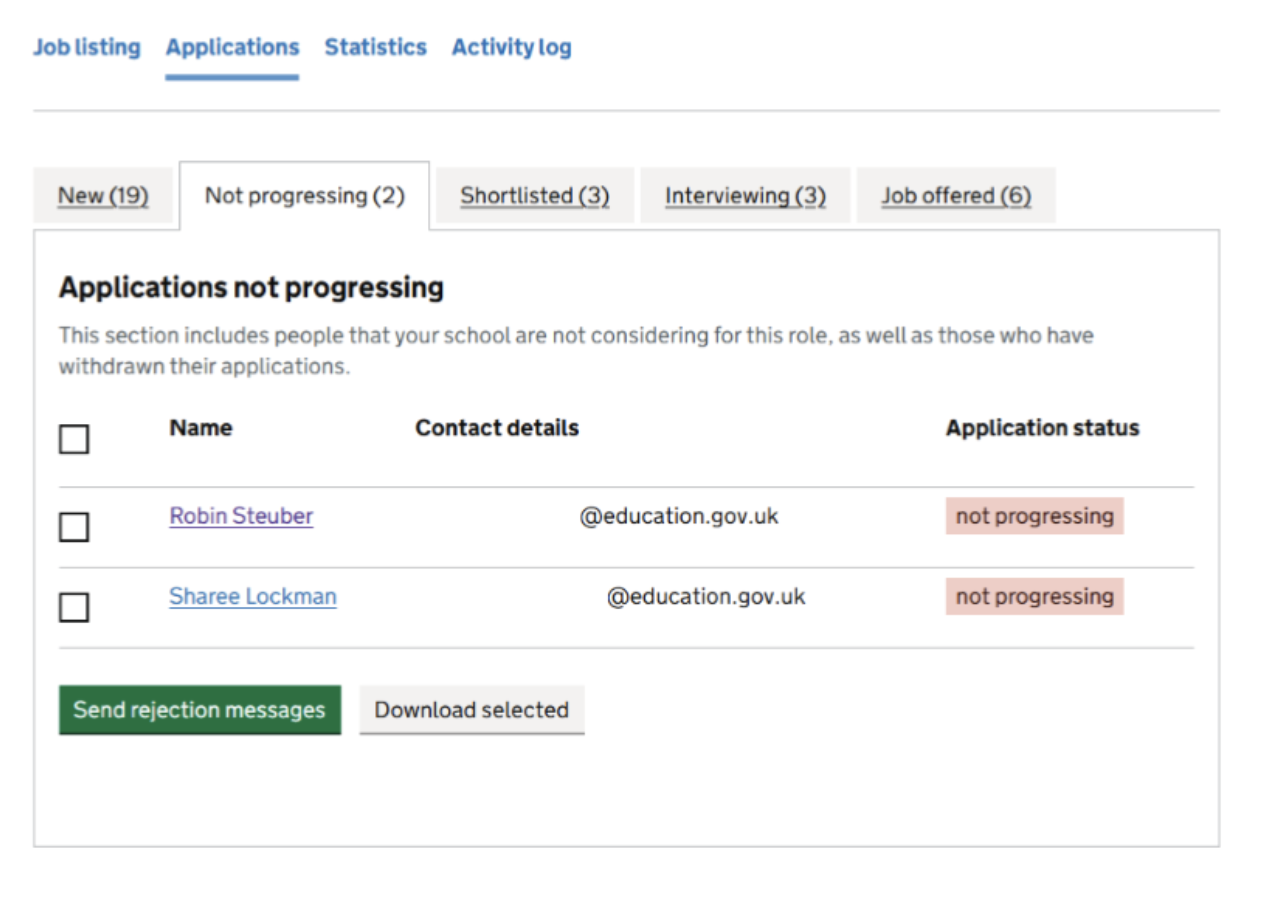
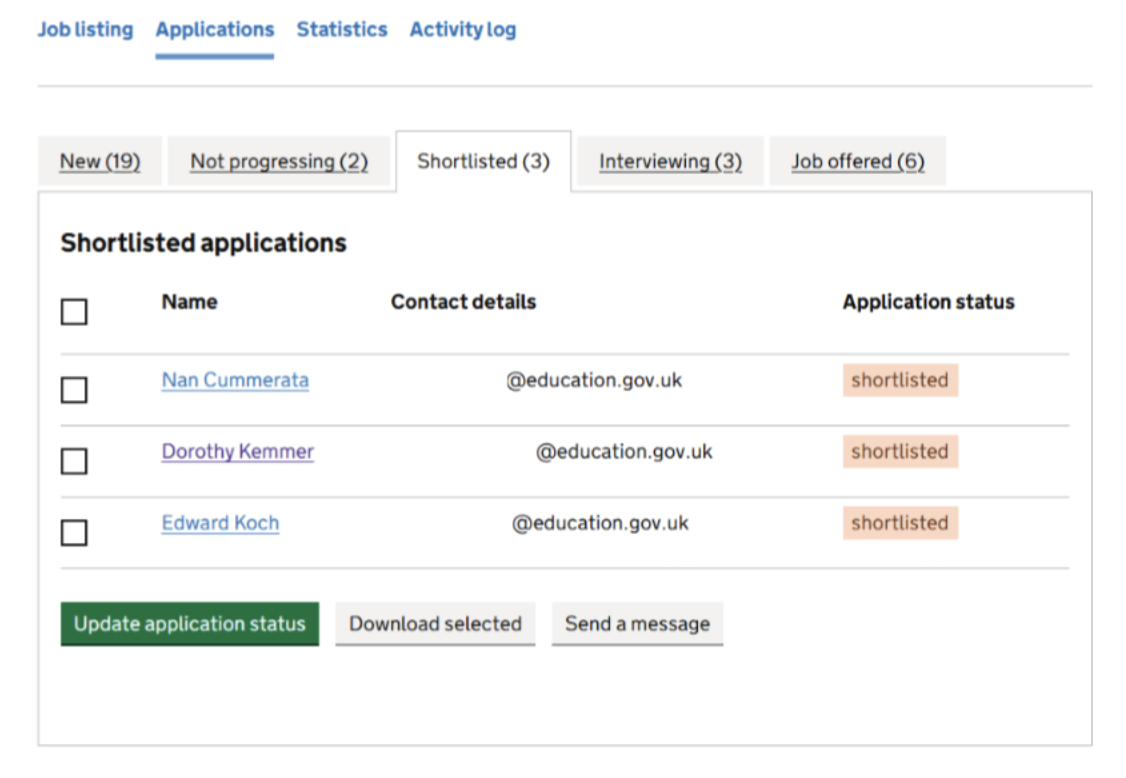
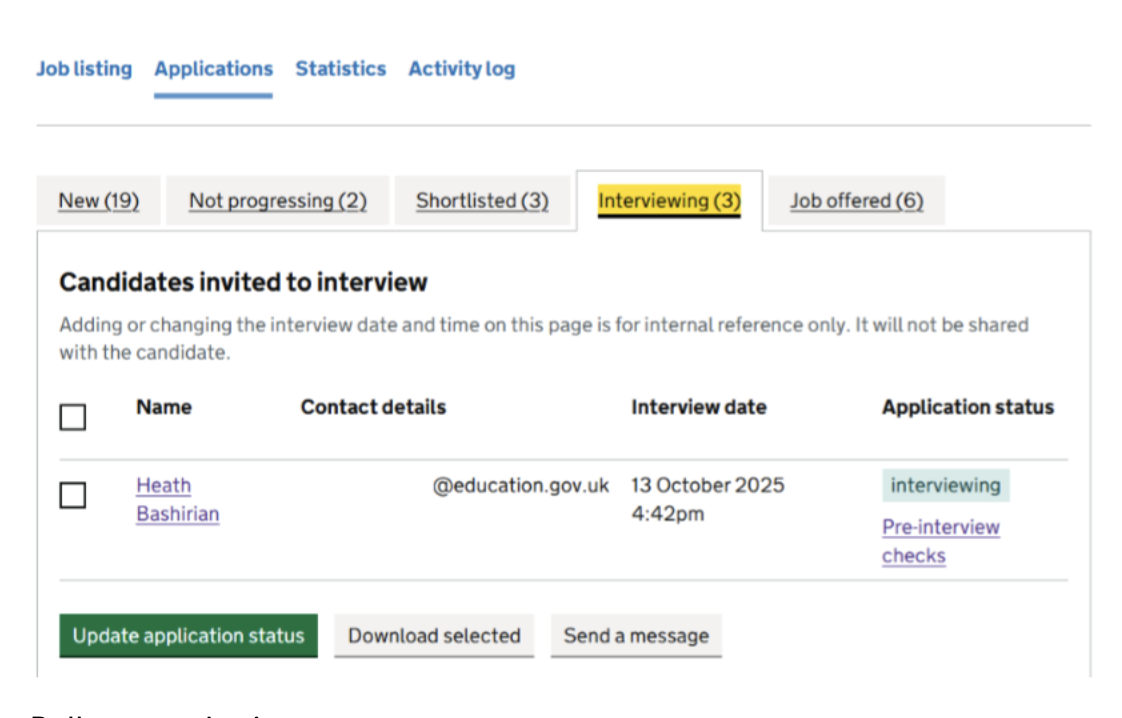
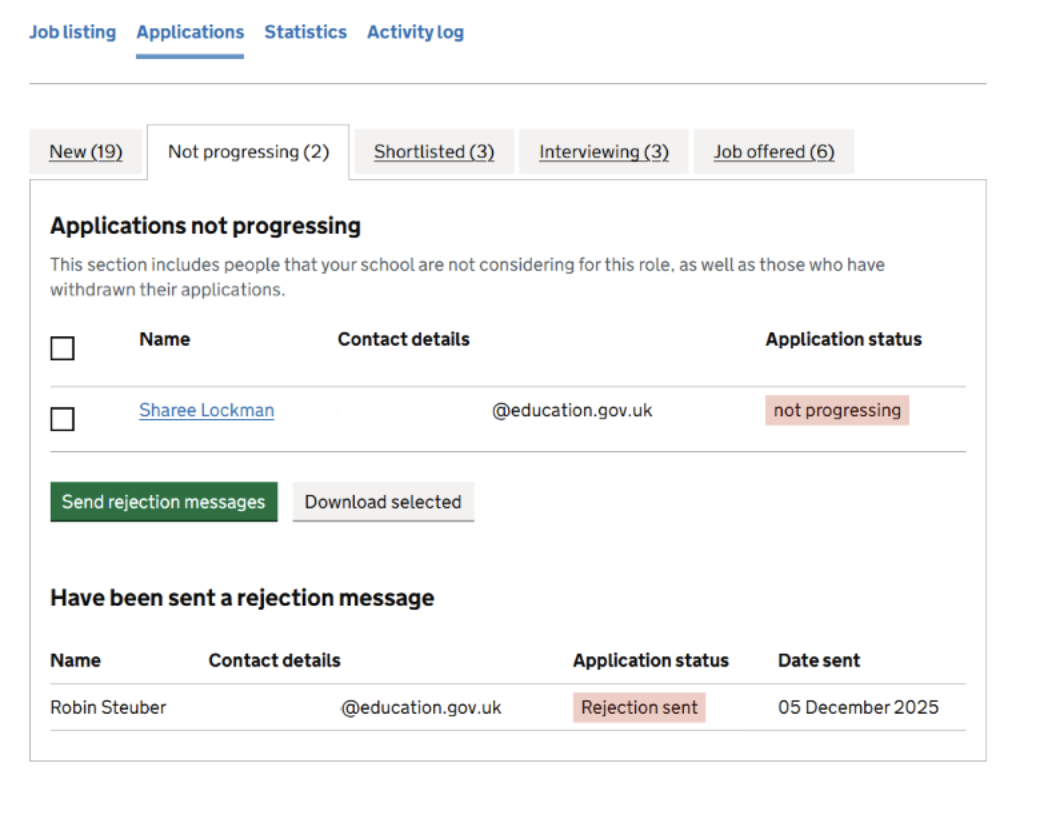
- a message button has been included on the ‘Not progressing’, ‘Shortlisted’ and ‘Interviewing’ tabs within our application management table which all connect to the same bulk messaging journey
- bulk message functionality by allowing hiring staff to select one, or many, applicants from a tab within the application management table and trigger a message to the selected applicants
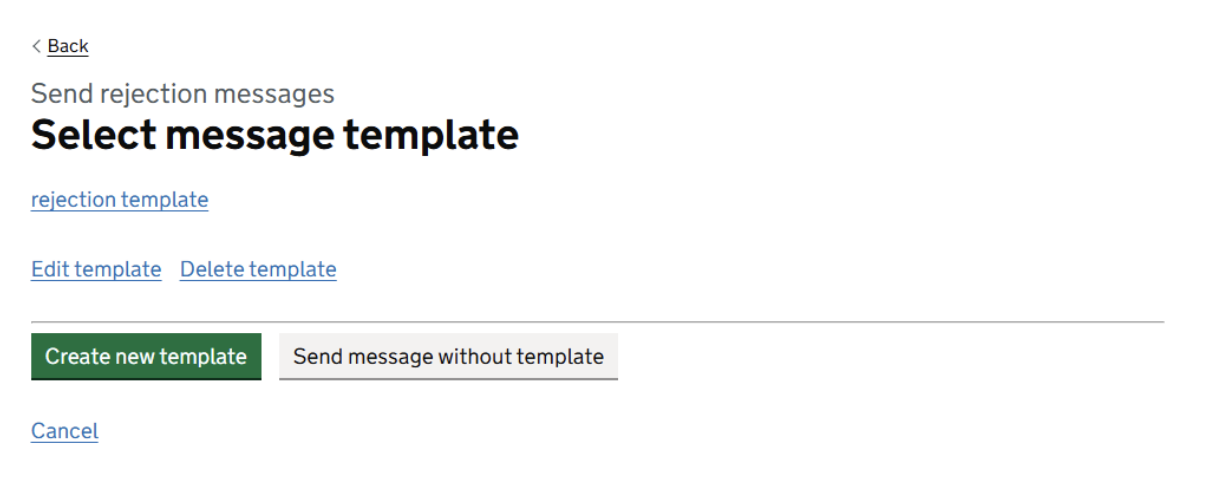
- a bulk messaging journey which starts by asking hiring staff if they wish to create, update or use one of their message templates – note that hiring staff can opt to skip the templates section if they do not wish to use this
- a separate table to show which applications you have send a rejection, or unsuccessful application, message
The above changes should provide hiring staff with flexibility with regards to how they wish to send communications to applications they receive via the service. They can message applicants one by one, or they can utilise our bulk templating and messaging feature if this is more appropriate.
Need HN002
ValidatedAs a hiring staff user
I need to be proactive in filling vacancies
So that I can find suitable candidates for jobs at my school
# Screenshots
- The ‘send rejection messages’ button on the ‘Not progressing’ tab
- The ‘send a message’ button on the ‘Shortlisting’ tab
- The ‘send a message’ button on the ‘Interviewing’ tab
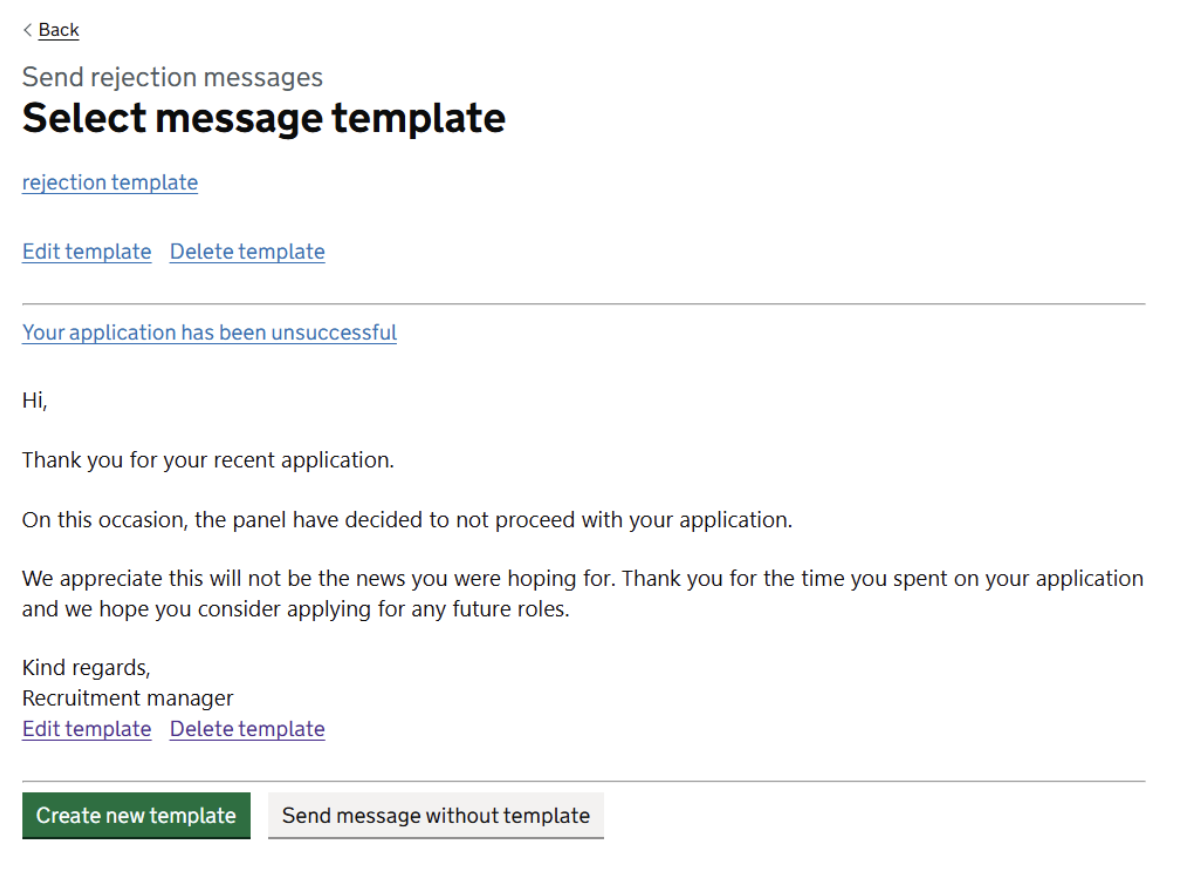
- The create, edit, delete or skip message templating buttons on the bulk messaging journey
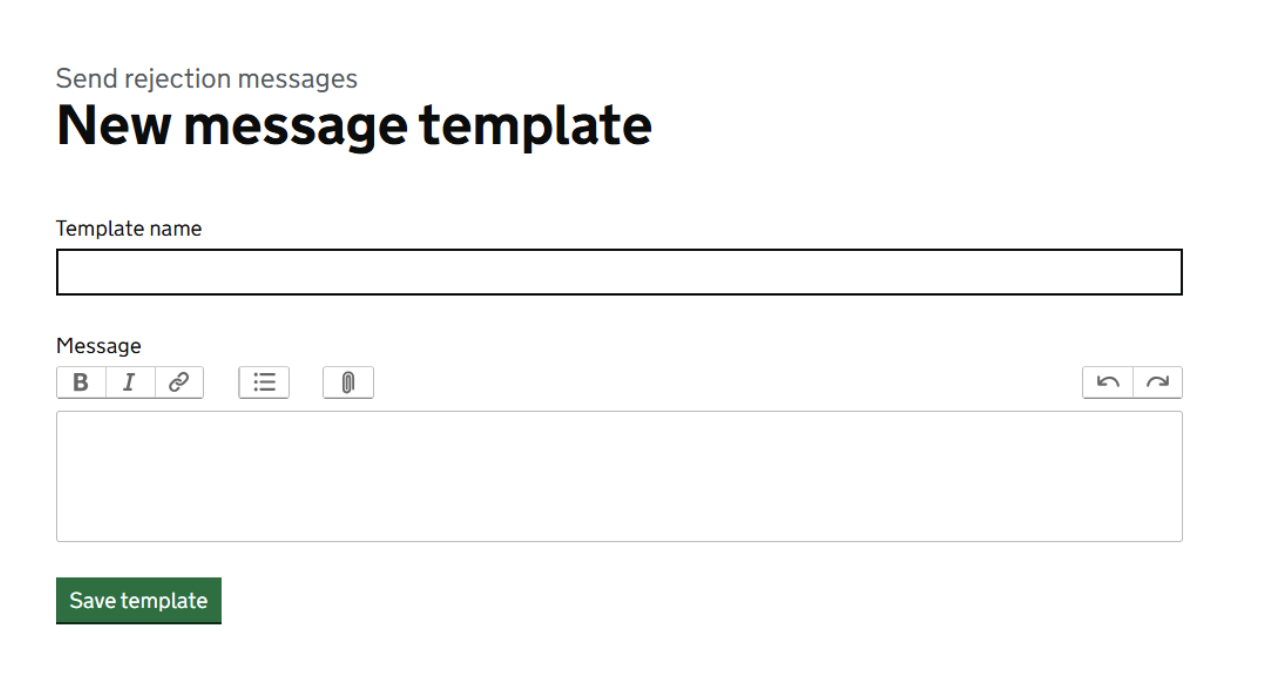
- The create a new template page on the bulk messaging journey
- The select message template page
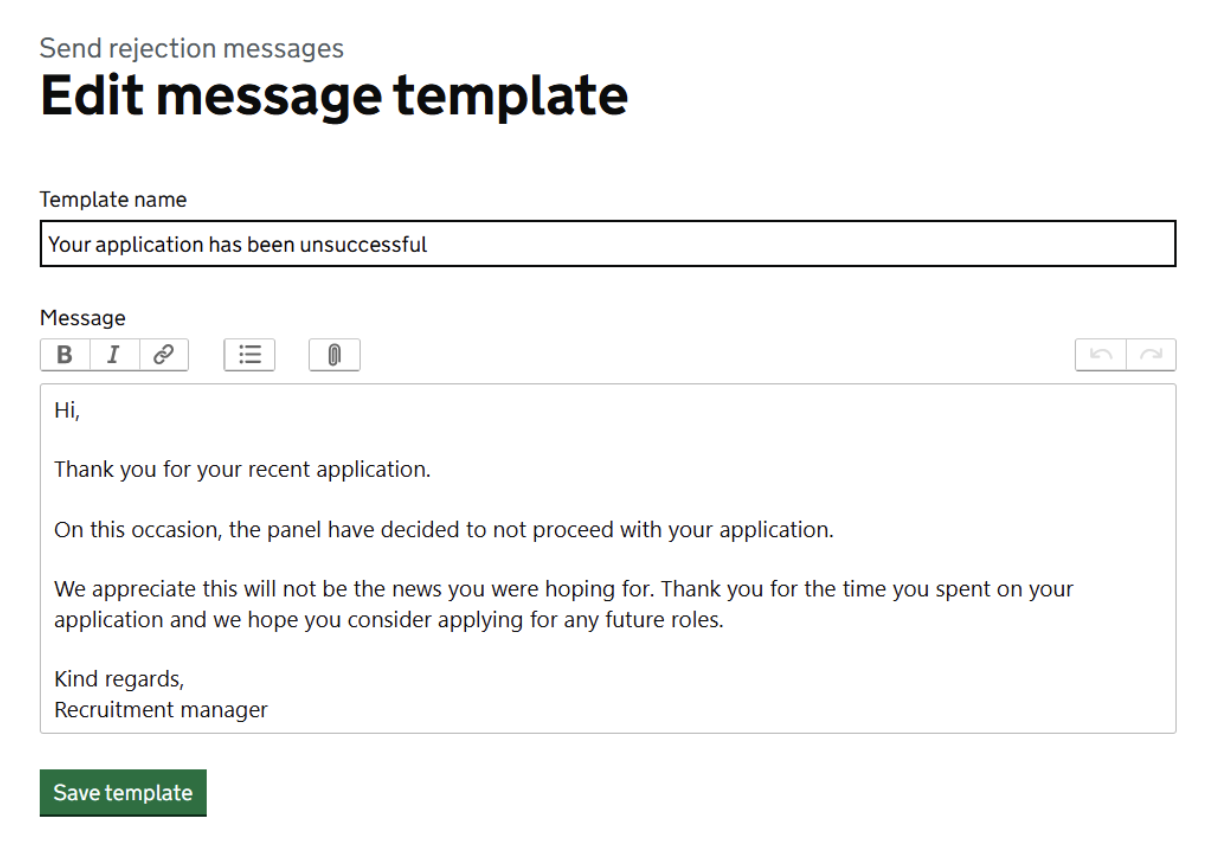
- The edit message template page
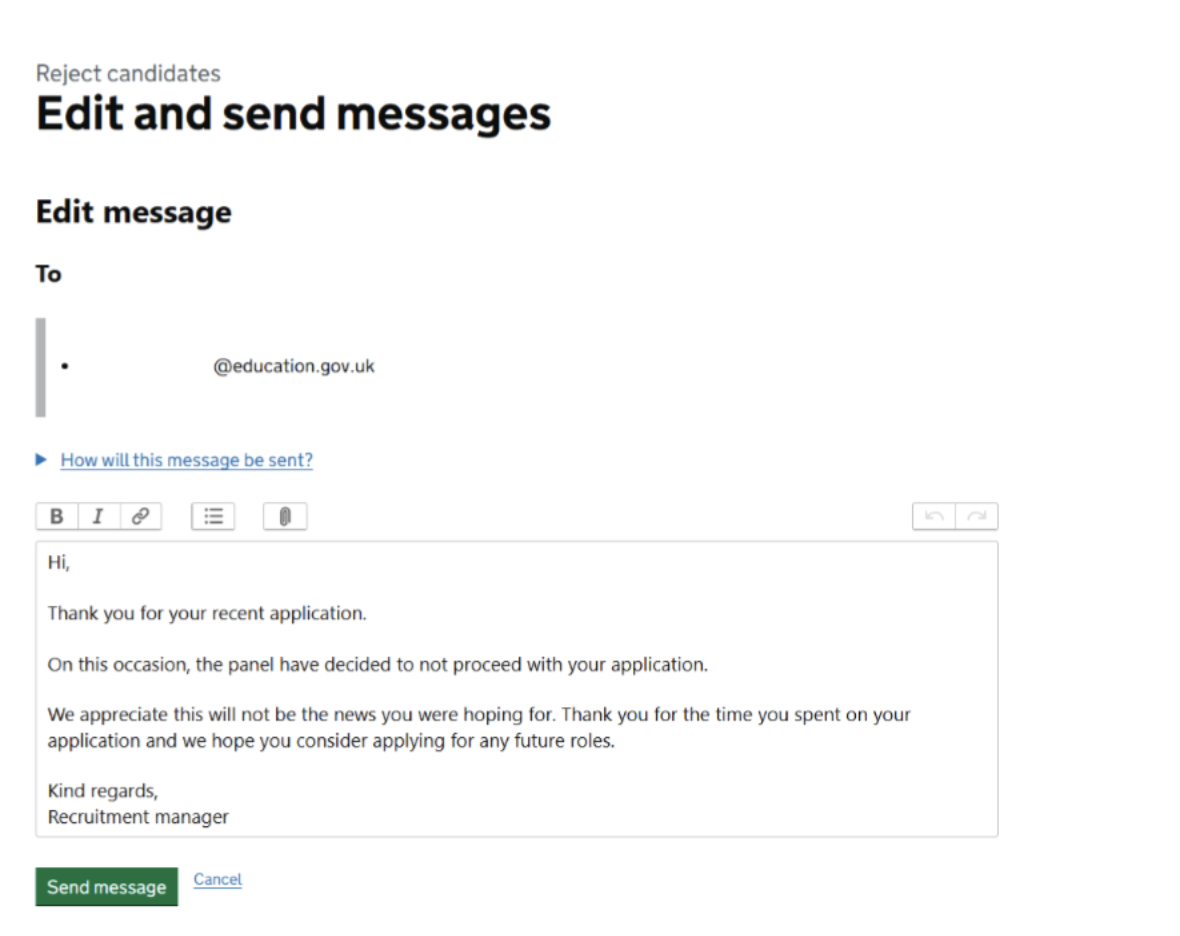
- edit and message templage page. If templates are skipped, hiring staff are taken to this page with the message entry box being left blank
- The applications with the 'not progressing' tab active. Once a rejection message is sent, applications are moved into a seperate table underneath